Luna TV Home

Setup guide

Set up from your sofa.

The first time it opens, Luna TV walks you through setup one step at a time. Only signing in to Jellyfin is required. You can skip everything else, and each step ticks itself off when you come back to Luna TV.

Sign in to Jellyfin Required

Type your server address and sign in with the remote, or use Quick Connect from a device that's already signed in.

You can also scan the code on the TV and sign in from your phone with the web console. Your phone or computer must be on the same network as the TV.
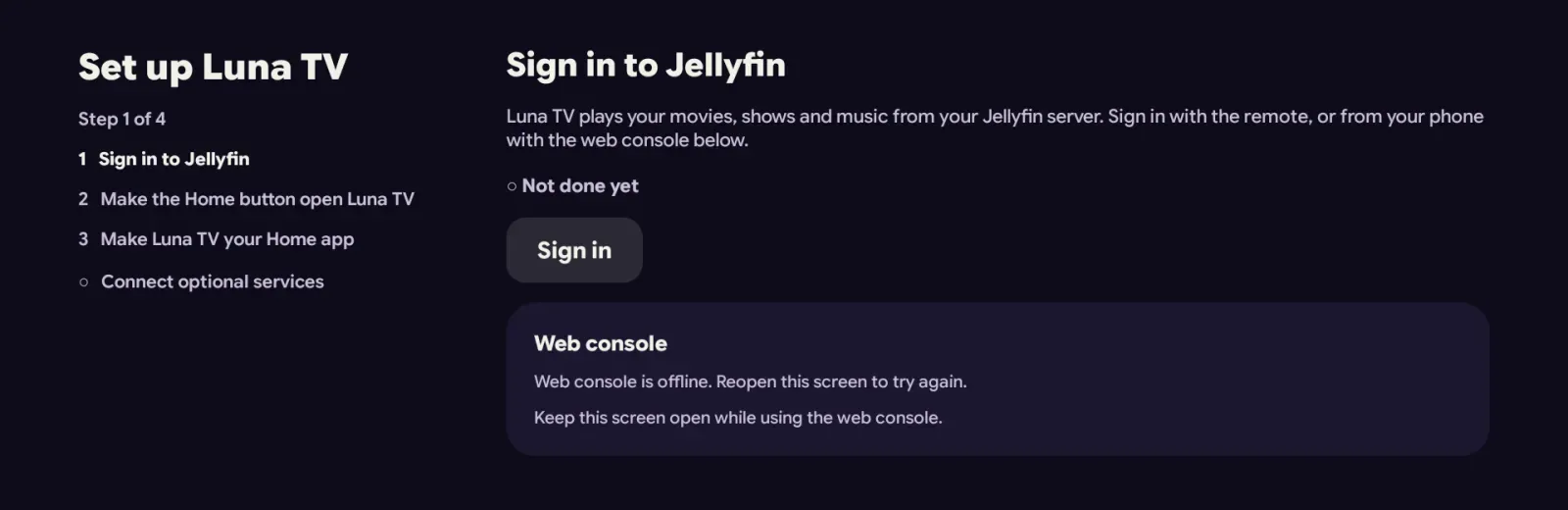
First-run setup screen with four steps and the web console panel
The setup screen. The web console panel shows a code to scan and the address to open.

Let Luna TV catch the Home button Google TV only

Google TV sends the Home button to its own launcher, even when another app is the Home app. Turn on Luna TV in Accessibility settings to get it back: open Luna TV under Services, choose Enable, then OK.

Android warns that the app could read what you type. Luna TV only watches the remote's buttons and which app is open, never the screen or what you type.

Make Luna TV your Home app

One button opens Android's Home app picker. After that, Luna TV is the first thing you see when the TV starts and every time you press Home.

Connect optional services Optional

Sonarr, Radarr and Seerr add what's coming next, downloads and requests to the home screen. Scan the code with your phone, enter the pairing token shown on the TV, and type the addresses on a real keyboard.

Keep the TV on that screen while you do it. The web console only runs while the setup screen or Settings is open. You can skip this and do it later from Settings.